

MovieFlo.AI Guide
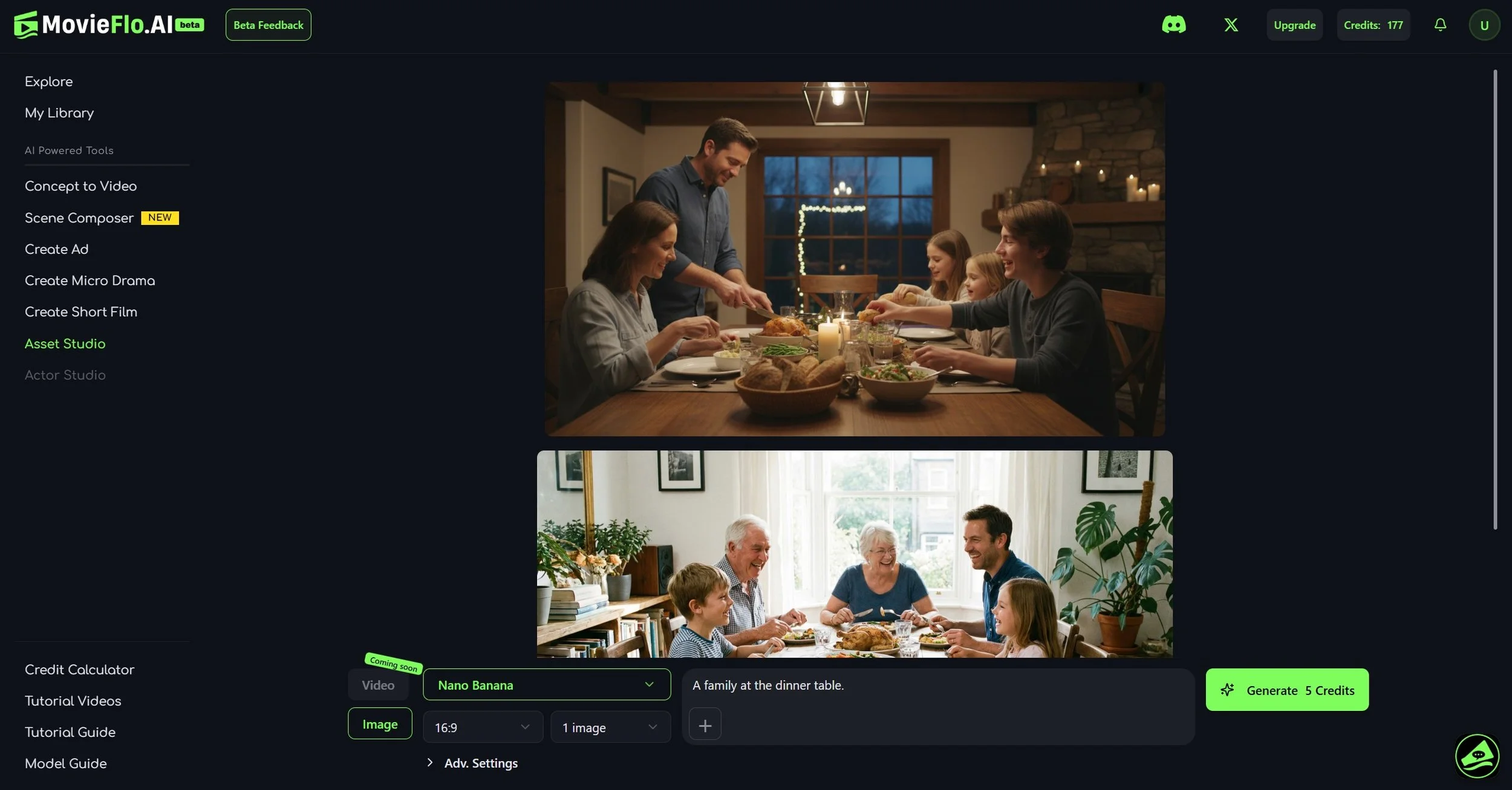
Choose an Image Model - Select the image model you want to use to generate an image. There are many different options available, so we recommend trying different ones to see which you like the best. (Hint: Nano Banana Pro is a good one to start with!)
Choose an Aspect Ratio - Select an aspect ratio for the image(s) you want to generate. The available choices are: 16:9 (Widescreen), 3:2 (Widescreen), 9:16 (Vertical), 2:3 (Vertical) or 1:1 (Square).
Number of Images - Select the number of images you want to generate. This can be 1, 2 or 4 images.
Describe the image - Describe the image you want to generate in the field where that text appears. You can also add reference images by clicking on the Plus button in the same field.
Upload Reference Image - Upload multiple images to use as reference.
Generate the image - Finally, click on the green Generate button to generate your image(s).
Asset Studio
Overview
Asset Studio lets you generate and edit images that can be later imported into projects or scenes. To get started, click on the Asset Studio button on the Explore page or on the Asset Studio link on the left side of the screen.